FREE HOMEBREW FOR LG WEBOS TVS
Apps LG never gave your TV.
67 verified IPK files for LG webOS TVs. Every one was checked by hand, and each one installs with Developer Mode. Free forever, and no account is needed to browse.
An IPK is the install file for a webOS app – like an installer. Download it to a computer, then install it on your TV with Dev Manager.
67 apps – 784 MB – 5 categories – checked by hand on 23 Nov 2026, free forever, no account needed.
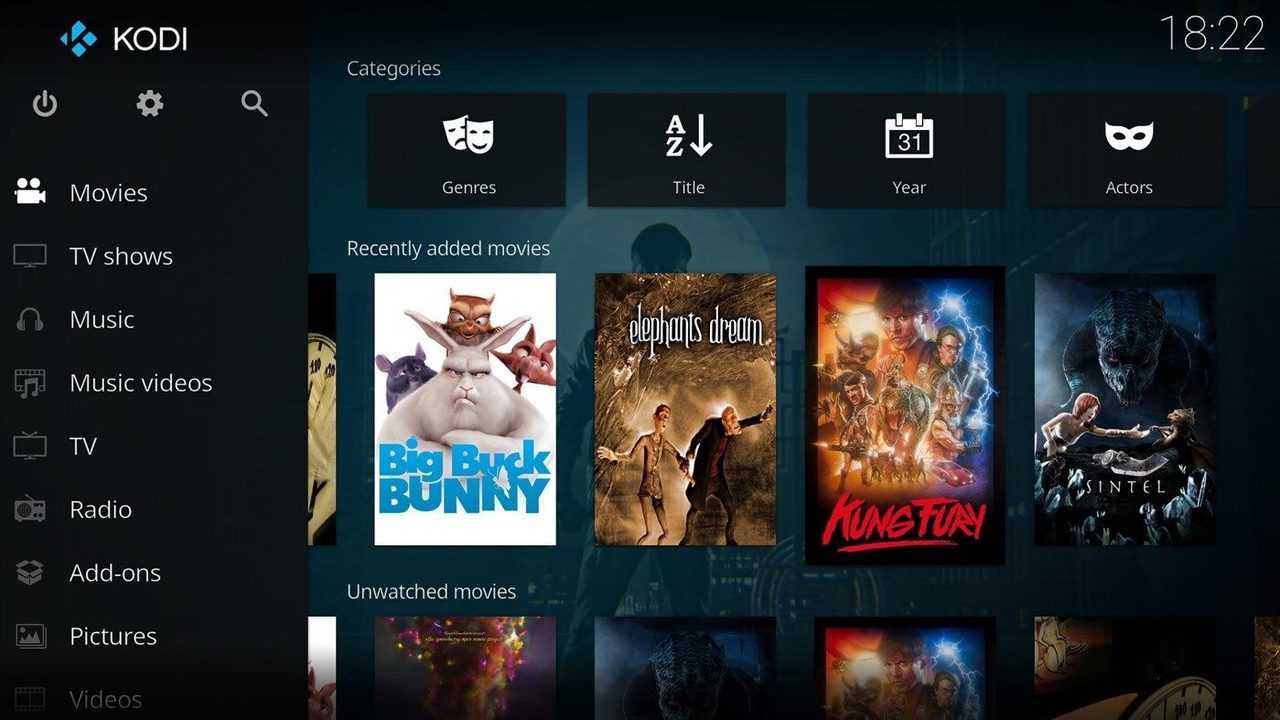
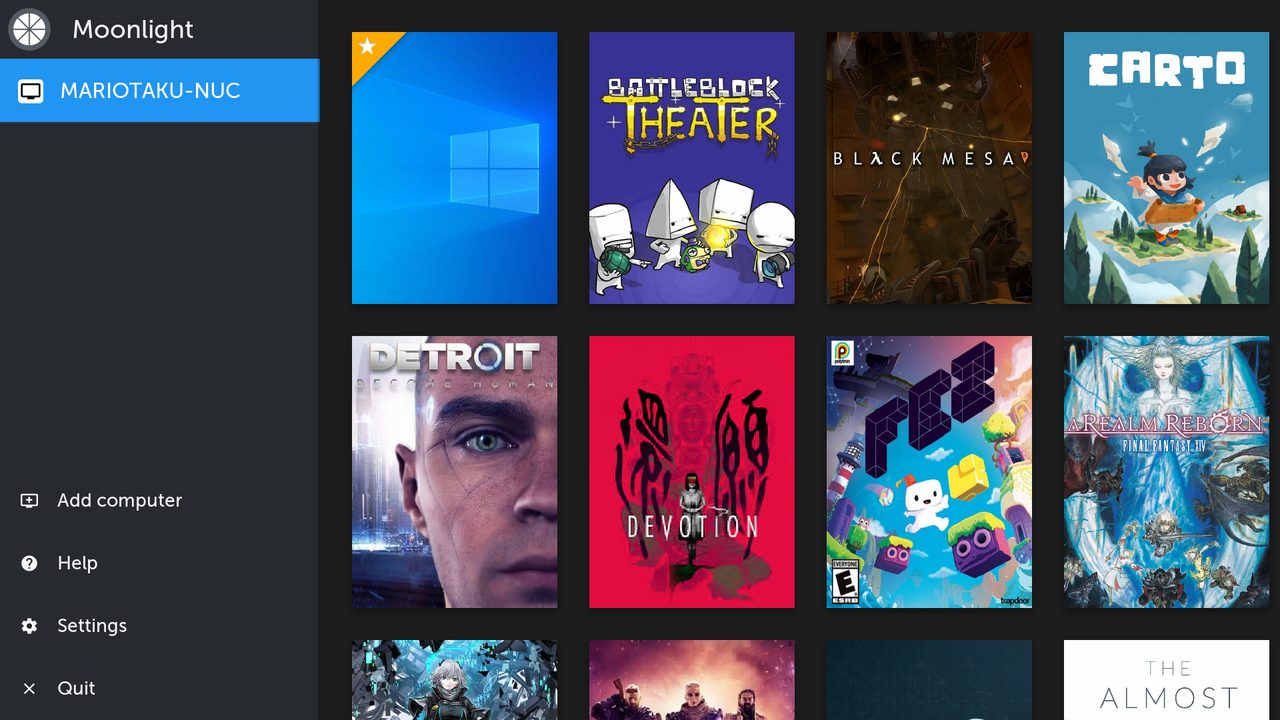
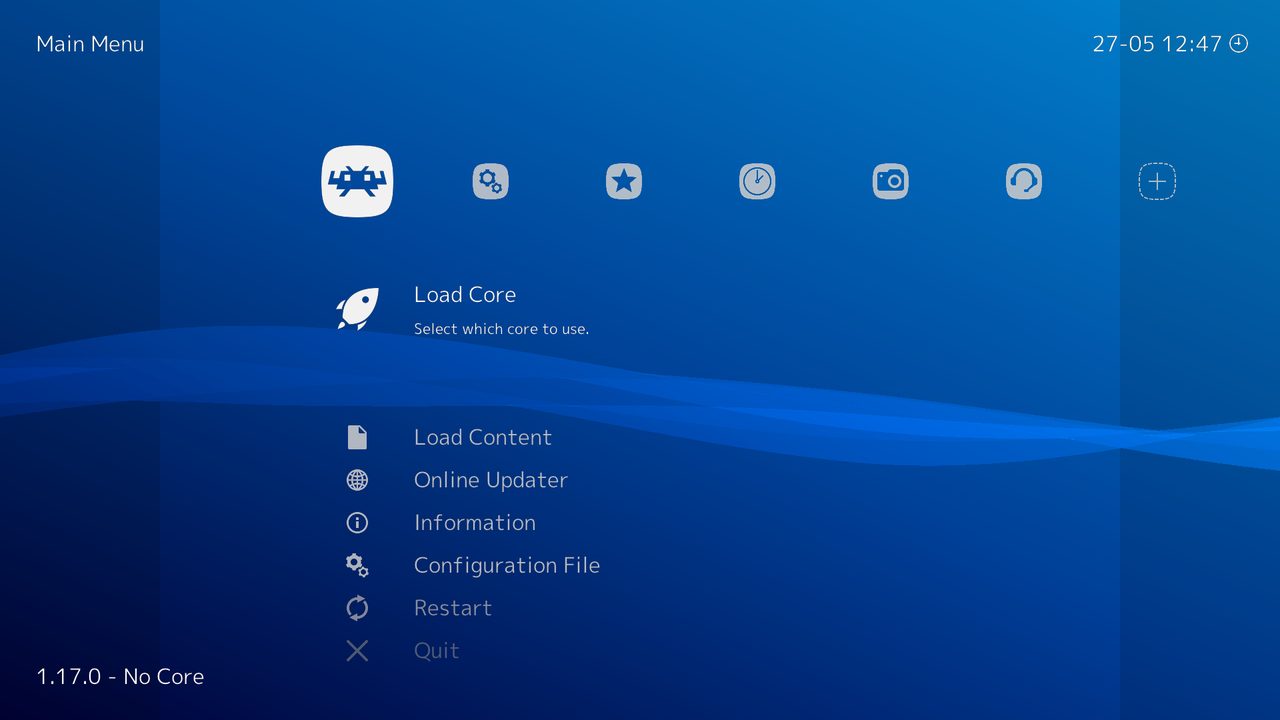
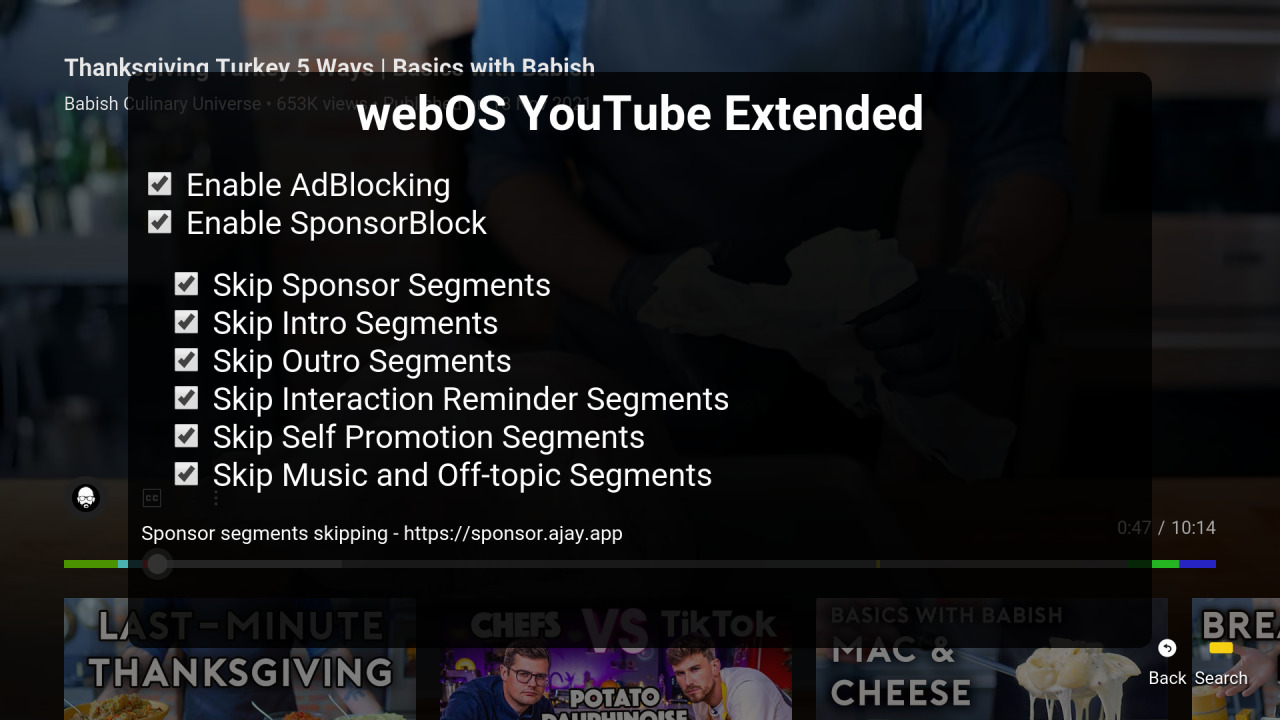
Kodi, Moonlight, RetroArch and YouTube AdFree, running on a real TV.
New here? Your first install, in four steps.
App of the day
One app, worth your evening.

App of the week
One app, worth your week.
23 – 29 Nov 2026

Kodi, this week.
If your TV could do only one extra thing, this is the one to pick. Kodi is a free, open-source media centre that turns the TV into a proper library for everything you already own: films and shows on a USB stick, files shared from a computer on your home network, and add-ons that extend it further. Instead of jumping between apps and inputs, you open Kodi and everything is in one place, with cover art, descriptions and a menu built for the remote in your hand. It is the app this library was built around, and the one that makes an ordinary TV feel like a proper home cinema setup.
Two honest warnings before you install it. First, the build in the library right now is a release candidate, not the finished release. That means it is close to done and tested by a lot of people, but it can still have rough edges, and the finished release will replace it in time. If you want zero surprises, there is nothing wrong with waiting for that finished release instead. Second, it does not run on every TV: it needs a recent webOS version, and it is not for k5lp TVs, so check your model first rather than finding out after the download. Your model number is in the TV’s settings.
Start simple. Plug a USB stick with one favourite film on it into the TV, open Kodi, and play it. If that works, point Kodi at a shared folder on your home network next, and let it build your library once. Give it that first evening before judging it: the library only shows its worth once everything is in place. After that, the evening is just picking something to watch, and Kodi quietly becomes the app you open first.
Checked 16 Nov 2026
THE ONE TO OPEN FIRST
Stremio, on your TV tonight.
Six of the most loved apps in the library. Every one is free and open source, and every download link was checked by hand. Tap any card to see it in the library.

Stremio for webOS
Your films, shows and addons, on the big screen. A 14 KB app, free, no server to run.
v1.0.5 – 14 KB Streaming webOS 5.0 or newer Get Stremio for webOSFive more to open:
Kodi
The award-winning free and open source media centre. Play videos from USB drives, your home network and add-ons, all from one library.
v22.0 RC2 – 99.4 MB Media View in the library
Jellyfin
The official Jellyfin client for webOS. Connect it to your own Jellyfin media server and stream your movies, shows and music on the TV.
v1.2.2 – 158 KB Media View in the library
Moonlight
High-performance game streaming client for your TV. Stream games from your PC with NVIDIA GameStream or Sunshine, with an interface made for the big screen and the remote.
v1.6.36 – 1.4 MB Games View in the library
RetroArch
Play classic console games with this emulator front end. RetroArch runs libretro cores for dozens of systems – add your own game files. May need the 64-bit bridge on some TVs.
v1.22.2 – 4.4 MB Games View in the library
Homebrew Channel
The homebrew store for rooted TVs. Browse, install and update homebrew apps right on the TV, without a computer.
v0.7.3 – 1.6 MB Launchers View in the rooted sectionSTART HERE
First 5 apps for a new TV.
New TV, first evening: these five, in this order.



FIRST INSTALL
Four steps, then it is on your TV.
Your TV browser cannot install an IPK by itself. Set up Developer Mode once, and every app after that takes seconds.
Make a free LG developer account
Sign up at webostv.developer.lge.com. It costs nothing and takes a few minutes.
Turn on Developer Mode
Install the Developer Mode app from the LG Content Store, sign in, turn on Dev Mode Status and Key Server, and note the TV IP address and the 6 character passphrase.
Add your TV to Dev Manager
Install webOS Dev Manager on your computer and add your TV with its IP address and passphrase.
Download an IPK and install it
Pick any app in the library, download its IPK file, then install it from Dev Manager. It appears on your TV home screen.
The full checklist lives on the library page, and your progress is saved on this device. Open the install checklist
On the TV right now? Your TV browser cannot download files. Every app shows a QR code instead: scan it with your phone, download the IPK there, and install it from your computer.
SHELVES
Pick an evening.
Sixty-seven apps is a lot to scroll. These are the shelves we would walk you to first. Every chip opens that app in the library.
Watch tonight
Films, shows and live TV, without the LG store.



Your media, on the TV
Your own films, photos and music, from your own server.





Play
Games on the big screen, from your PC or from the classics.




Moonlight, IHSplay and the classics need something of yours first: a PC to stream from, or your own game files.
Make the TV yours
A calmer home screen, a better screensaver, a TV that feels like yours.



Rooted your TV? Lumen, webOS NXE, PicCap, Custom Screensaver and Homebrew Channel live in the rooted section. Read the root page first.
17 NOV 2026
Just landed
 New version
Fruit Ninja, sharper than ever.
Now v1.6.1-6. The slicing classic, updated and checked by hand.
See it in the library ->
Rooted only
Rooted? There is a whole second library.
38 apps that only work on rooted TVs, Glasshouse and CleanYourTV among them, kept in their own section.
Browse the rooted section ->
This week’s pick
This week’s pick, in depth.
One app, three paragraphs, checked by hand – the full story behind this week’s pick.
Read this week’s pick ->ROOTED TVs ONLY
Rooted? There is more.
Thirty-eight more apps, only for rooted TVs, kept in their own section so the library stays simple. Every download link was checked by hand.



Get started
Two ways in. Pick one.
Root your TV
Rooting unlocks the Homebrew Channel and 37 more apps, and installs stay put with no 50-hour expiry.
Check your TV and root it ->Install via Dev Mode – no root required
Turn on Developer Mode once, then install any of the 67 apps with Dev Manager. No root, no risk to your warranty.
Read the Dev Mode install guide ->THE LIBRARY
That is the whole library.
67 verified IPK files, 784 MB in total, across 5 categories. Every file checked by hand, free forever.
Verified means the IPK was downloaded from the original source and its SHA-256 hash was checked by hand.
All 105 download links checked 23 Nov 2026 – all working.
CONTRIBUTE
Built something for webOS?
Share it with the library. Every submission is reviewed before it appears, and with your consent your app is shared publicly so others can try it.
KEEP IT FREE
Support Orb
This library is free and stays free. If it helped you, a donation keeps it running.

Owner of ckorb.com – Algeria
Donations go by BaridiMob: copy the number above and send your donation from the BaridiMob app. Questions? Reach Orb through the contact page.
Binance Pay ID: 421790614 (Bamodjaks) – send with Binance Pay in the Binance app.
Payoneer: bamodjak@gmail.com – send with Payoneer to this email.
Orb IPK Library – ckorb.com – Homebrew only. Install at your own risk.
An IPK is a program – it can do anything on a TV. Only install apps from makers you trust.
Not affiliated with LG, webOS, or any app listed here.
Privacy – Terms –